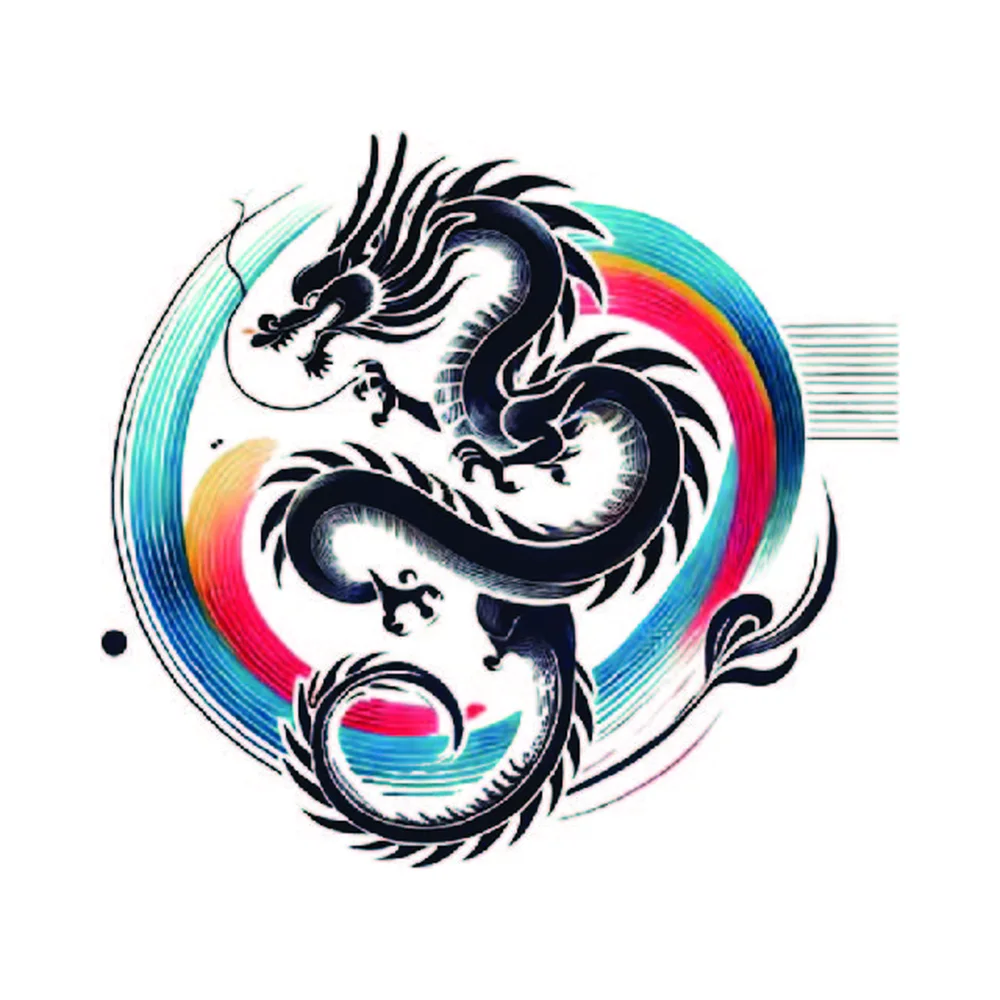
Your logo looks blurry because it is a raster file (JPG, PNG): a fixed grid of pixels that smears when enlarged. A vector file (AI, EPS, SVG) is made of shapes, so it stays sharp at any size.
Raster
Pixels. Fine on screens at its original size.
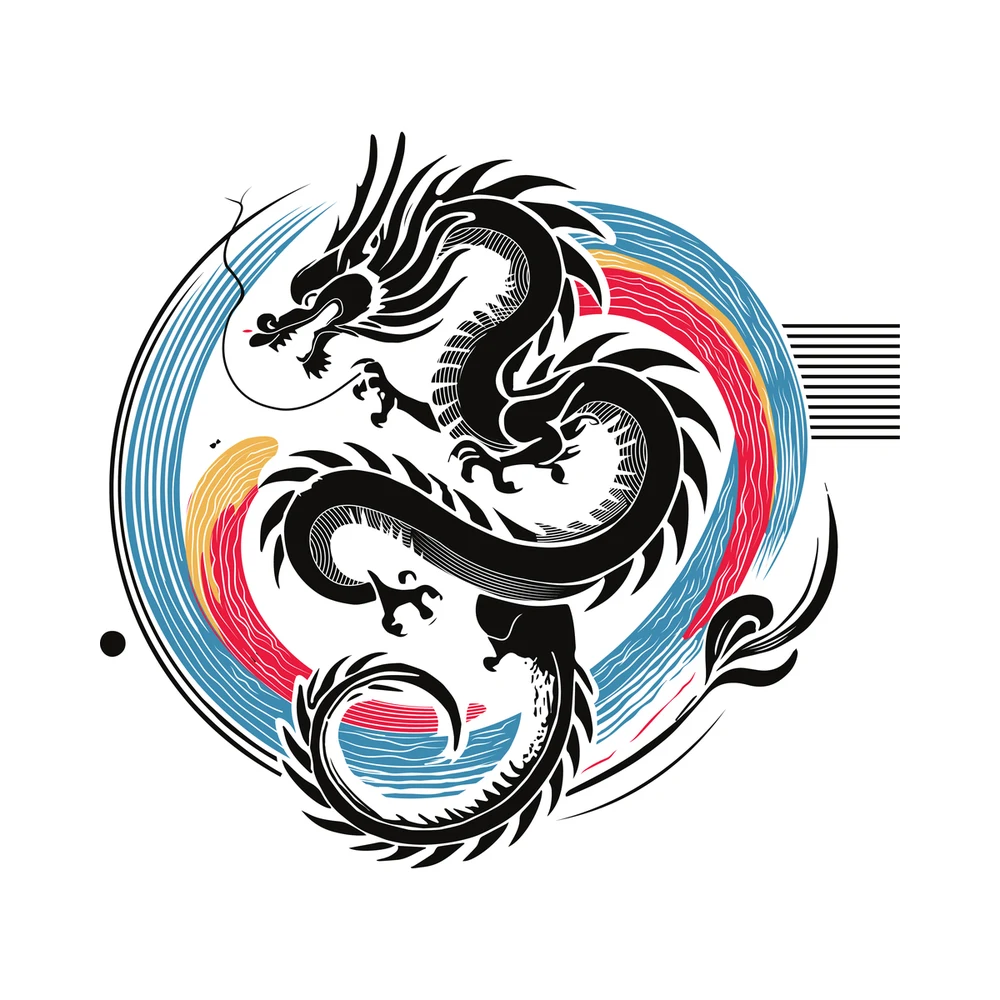
Vector
Shapes and paths. Sharp at any size.
Raster and vector: what's the actual difference?
A raster image is a grid of tiny colored squares called pixels. JPG, PNG and GIF files work this way, and so does every photo you take on your phone. The grid has a fixed size. When you enlarge it, the software has to invent new pixels between the old ones, and that's where the blur comes from.
A vector file doesn't store pixels at all. It stores instructions: start at this point, draw a curve to that one, fill the shape with this color. Because the shape is described mathematically, it can be drawn at any size and the edges stay crisp. AI, EPS and SVG are the usual vector formats, and a PDF can be vector too when it's saved from a design program.
That's why one vector logo can go on a pen and on a building banner, while a small PNG only looks right at about the size it was made for.
Where a raster logo causes real problems
For a website or a social profile picture, a decent PNG is usually fine. Trouble starts once the logo goes into production:
- Screen printing. Each color needs its own clean, solid shape. Fuzzy edges and in-between shades make separations messy.
- Embroidery. A digitizer builds stitches from the shapes in your artwork. The clearer those shapes are, the better the stitch-out.
- Vinyl and heat transfers. Cutters follow paths. No paths, no clean cut.
- Signs, banners and vehicle graphics. A logo that's fine at three inches looks rough at three feet.
- Patches and promotional products. Small text and thin lines need to be redrawn cleanly before they're made in thread, rubber or leather.
Why auto-trace often isn't the answer
Most design programs have an image-trace button, and there are plenty of online converters too. They work by detecting edges and drawing paths around them automatically. On a simple, high-contrast shape that can be good enough for a quick look.
On real logos the results are usually rough. Curves come out lumpy, straight edges wobble, and a single shape can end up built from hundreds of unnecessary points. Similar colors get merged or split in odd places, and lettering can lose its proportions. The file is technically a vector, but it's hard to edit and it can cause problems at the cutter, on the screen or in the embroidery machine.
Redrawing by hand takes longer, but you end up with clean paths: smooth curves, sensible point placement, correct colors and lettering rebuilt properly. That's the file a production team actually wants, and it's how we handle every vector job.
A quick test: select the artwork in a design program. If a simple curve is made of dozens of tiny points, it was probably auto-traced. If you zoom in and see stair-steps or blurry squares, it's still raster.
How to tell which kind of file you have
Quick test: zoom in on a curve as far as you can. Stair-steps or blur mean pixels. A sharp edge at any zoom means vector.
- Check the extension. JPG, JPEG, PNG, GIF, BMP and WEBP are raster. AI, EPS and SVG are normally vector.
- Zoom way in. Open the file and zoom in on a curve. Stair-steps or blur mean pixels.
- Don't trust a PDF at first glance. A PDF can hold real vector artwork, or it can be a photo wrapped in a PDF.
- Renaming doesn't convert anything. A PNG renamed to .ai is still a PNG.
What we need to rebuild your logo
Less than you'd think. As long as the shapes and layout are visible, we can rebuild a logo as clean vector artwork, even from a blurry photo, an old scan or a rough sketch. A few things speed it up:
- The best version you have, even if it's small. If you have several, send them all.
- Where it will be used: screen printing, embroidery, patches, signage or print. That decides how we set up colors and detail.
- Brand colors, ideally as Pantone values. If you don't have them, we match as closely as we can from your reference.
- The font, if you know it. If not, don't worry, we'll match or rebuild the lettering.
Depending on the job, you get AI, EPS, PDF and JPG files (SVG or PNG on request), plus spot-color separations when the artwork is headed for screen printing. Pricing is on our vector art page.
A quick checklist before you send artwork to any printer
- Ask what file type they need before you send anything.
- Send vector files (AI, EPS, SVG or a vector PDF) if you have them.
- If you only have a raster file, send the largest one and don't resize or re-save it first. Every re-save of a JPG loses a little more quality.
- Tell them the final print size and the number of colors.
- Ask for a proof before production starts.
Wondering what a redraw will cost? We break it down in how much logo vectorization costs. Printing on shirts? See what screen printers need in our screen printing vector art service.
Embroidering the logo as well? Our guide to preparing a logo for embroidery digitizing covers the extra checks thread needs.
Raster vs vector FAQs
Why does my logo look blurry when printed?
It is probably a raster file, such as a JPG or PNG, made of a fixed grid of pixels. When it is enlarged, the software invents in-between pixels, which makes the edges soft and blurry.
Is a PDF a vector file?
Sometimes. A PDF saved from a design program can hold real vector artwork, but a PDF can also just contain a photo. Zoom in to check: a vector stays sharp.
Can I turn a JPG into a vector by renaming it?
No. Renaming a PNG to .ai or saving it inside an EPS changes nothing. The logo has to be redrawn as vector shapes.
Is auto-trace good enough?
For a quick look on a simple shape, maybe. For production it usually gives lumpy curves and too many points, which cause problems in printing, cutting and embroidery. A hand redraw is cleaner.
What do you need to redraw my logo?
The best version you have, even if it is small or blurry, where it will be used, and your brand colors and font if you know them.
Got a logo stuck in a blurry file?
Send it over, even if it's a photo or an old scan. We'll rebuild it as clean vector artwork and quote it for free.
Get a Free Quote →